

When we install WordPress, many times we put the first email that comes to mind, or a personal email.
We do not pay too much attention to the importance of that email, which will be the administrator’s email.
WordPress uses this email to send out important notifications, such as when a new user account is created, an automatic update is installed, and comment moderation notices.
We are going to see three different ways to change the administrator’s email.
General Settings

In the Dashboard we will go to the Settings menu, where the WordPress settings will open, we will look for “Administration Email Address” and change the email.

Now you just have to go down and click on the “Save Changes” button.
Users Menu
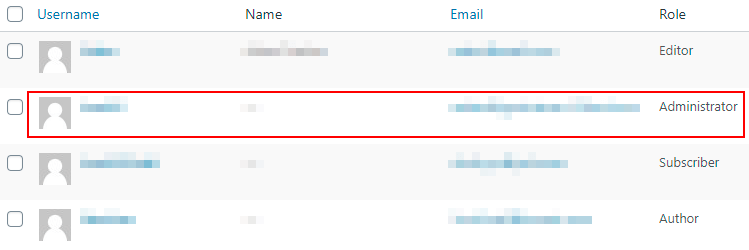
The following method is also executed in the WordPress Dashboard, in this case we will go to the Users menu.

We enter the administrator’s profile and change the email in the “Email (required)” field.
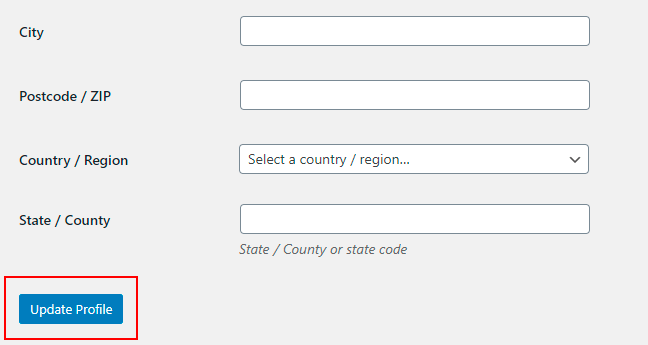
Now you just have to click on the Update Profile button for the changes to be made.
cPanel
For this method you have to have somewhat more advanced technical knowledge, since we are going to touch files from our installation.

To start, we have to access the cPanel of our hosting, and search for “myPhpAdmin”.
Once we are in our PHP Admin, on the left side we will find the databases and tables.
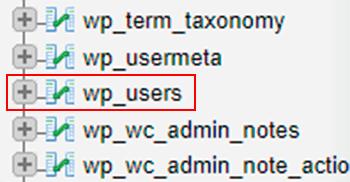
We search our database for the “wp_users” table.

On the right side we will see a list with all the users of our installation. We choose the Administrator and click on “Edit”.

We look for the user_email field and change the email. Once done, press the “Go” button.
Now we know Change The WordPress Admin Email Address, we have three ways to do it, we will choose the one we like the most.
But if you haven’t launched your WordPress site yet, you may be interested in reading our post Create Your Website With WordPress
Which Method Should You Use?
For most people, Settings → General is the easiest option. Use the Users method if you also want to change the email tied to your own account, and keep the cPanel method for emergencies, for example when you can no longer log in to the dashboard.
Site Email vs User Email: What Is the Difference?
The Administration Email Address in Settings is the address WordPress uses for site-level notices, such as update reports and new user alerts. The email in your user profile belongs to your account and is used, for example, to reset your password. They can be the same address, but they do not have to be, so it is worth checking both.
After You Change It
- Confirm the change. When you change the address in Settings, WordPress can send a confirmation message to the new address. Open it and click the link, otherwise the old address may stay active.
- Check your spam folder if the message does not arrive after a few minutes.
- Send a test. A simple way is to use the Lost your password? form on the login page and see whether the email arrives.
Tips
- Use an address you check regularly and that will not disappear, such as one on your own domain, instead of a temporary personal address.
- If WordPress emails never arrive, the problem is usually not the address but the server. An SMTP plugin, which sends mail through a proper email account, often solves it.
- Before editing the database with phpMyAdmin, make a backup. See Best WordPress Backup Plugins.
Once your site is up and running, give it a polished look with one of our WordPress themes for creatives. You may also like: WordPress User Roles and Permissions.
Leave a Reply