

Have you ever wondered, or did you need open external links in a new window or tab with wordpress?
Many times when we are writing a new post, we want to add external links that go to other websites, in this case we want the link to open on a new page or tab, since we are going to leave our website, but we want it to remain open.
External links are beneficial for our SEO, Yoast SEO always recommends adding an external link.
if you create a link to another website, the owner may return the favor in the future. This helps websites share visitors with each other. While you may think this will hurt your website, reaching new visitors far outweighs the risks.
Using Gutenberg
Gutenberg is now the default WordPress editor, and we will see how easy it is to add a link and open it in a new tab.
The first thing we are going to do is click on the “link” icon to be able to select the text that we want to convert into a hyperlink.

Now we write the URL and click on “link settings“.

Once we have opened the settings, we select the option “Open In New Tab“.
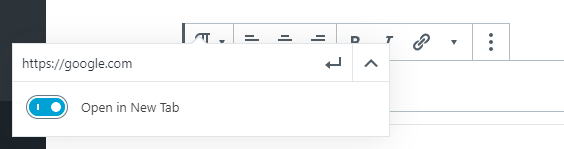
In this easy way we can create a link that opens in a new tab.
Using Classic Editor
For a few versions of WordPress, by default the Gutenberg block editor is used, to return to the classic editor we have to download a plugin, the classic editor plugin.
Now that we have the classic version of the editor, we will do something similar to the Gutenberg editor. First of all we are going to select the text that we want to convert into hyperlink and click on the “insert/edit link” icon.

Enter the URL we want to access and click on the “link options” icon.

A new window will be opened where we can edit or insert a link, we simply have to enter a URL, the link text, and we will check in “Open link in a new tab“.

Using HTML
We may ever be presented with the option of being able to enter some HTML code, well, if we want our link to open in a new window we will only have to add the following code to our “a” tag target=”_blank”.
<a href="Your URL Here" target="_blank" rel="noopener">External Link</a>As we have seen, it is very easy to add a hyperlink that opens in a new window or a new tab.
When Should a Link Open in a New Tab?
- External links: a new tab lets the visitor read the other site without leaving yours.
- Internal links: it is usually better to open them in the same tab, so visitors can use the back button naturally.
- Do not overdo it. Too many new tabs can be annoying, especially on mobile.
What Does rel=”noopener” Mean?
When a link opens in a new tab, the new page can, in some cases, get limited access to the page that opened it. Adding rel=”noopener” prevents this, and it is why the HTML example above includes it. When you choose Open in new tab in the WordPress editor, WordPress adds it for you.
Affiliate and Sponsored Links
If a link is an affiliate or paid link, Google recommends marking it with rel=”sponsored”. The link box in the block editor has a Mark as nofollow option, and for sponsored links you can edit the link as HTML and add rel=”sponsored” yourself. You should also tell your readers when a link is an affiliate link.
Tip for Accessibility
Mention in the link text or nearby that the link opens in a new tab if it may surprise the reader, for example “Read the guide (opens in a new tab)”.
Once your site is up and running, give it a polished look with one of our WordPress themes for creatives. You may also like: Important Things To Do After Installing WordPress.
Like!! Thank you for publishing this awesome article.
Thanks a lot.